
Getting started · Android
From invitation to your first reel.
Everything a new Android tester needs, in the order you will need it. It describes the newest version of the Android app, and yours may be older. If something here is missing on your phone, tell us, with the app version from Settings › About.
Using an iPhone? See the iPhone testing guide.
Join the test
Khel Vision is in a closed test on Google Play, so it is not in the store for everyone yet. Join the test with your Google Play email and choose Android. The next screen shows the setup steps right away.
- Join the testers group using your Google Play account.
- Open the Google Play test link and confirm that you want to take part.
- Install Khel Vision from Google Play using that same account.
Some testers are sent the app directly instead of through Google Play.
Sign in
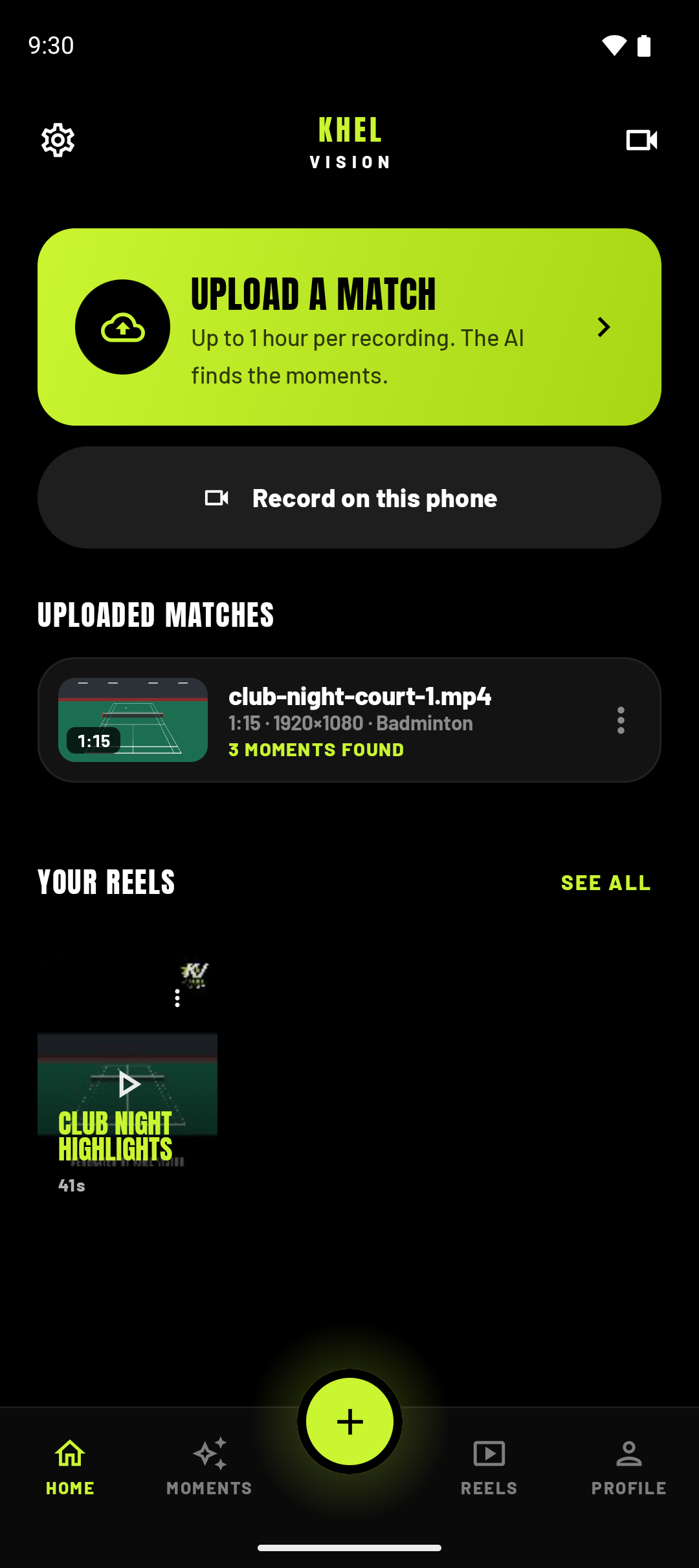
Open the app and tap Continue with Google. There is no separate password. You land on Home, which until your first match shows three steps: upload the match, we find the moments, you pick and build.
The app does not ask for every permission up front. It asks for the camera the first time you record or start a live match, and on Android 13 and later for notifications the first time you upload or make a reel — saying no there does not stop anything working. It never asks for the microphone: audio is never recorded.
Set up the phone
The app finds rallies in a match filmed from one place, and the spot is flexible. These are our tips; the app itself only asks you to frame the court.
- Get as much of the court in frame as you can. That matters more than the exact spot.
- A corner of the court is ideal, looking across the whole court. Right behind the court works too.
- Raise it a little. A slight height is usually better, wherever the phone is.
- Keep it still. A small tripod or a clamp on the fence. Nobody holds it.
- Check the space and the charge. An hour of video takes room, and the app stops a recording if storage runs low. Plug in if you can.
- Keep the app open while recording on the phone. Leaving the app or locking the phone stops the recording and saves what was filmed.
Your first match
Three ways in, all from Home:
- Upload a match
- Pick a video from the phone, Downloads or a provider such as Google Drive. MP4, MOV and M4V upload at full quality, up to 1 hour long.
- Record on this phone
- Film the match in the app, even without a connection. Before you start, you tick a box agreeing that the recording uploads once you are connected and that a reel is built from every rally automatically; recording cannot start without it. The original stays in the app on the phone.
- Start live match
- The camera button at the top of Home. Choose the sport and tap Prepare, frame the court, then tap Start recording; rallies appear while you play. Before you start, the app shows how long the session can run — up to an hour.
Each time, choose the sport — badminton, table tennis or pickleball — and tick the two conditions for that recording: it is yours to provide, and everyone identifiable in it is an adult who agreed to being recorded. Footage involving minors must never be submitted, on any plan, for any purpose.
Uploads keep going if you leave the app, and pick up where they stopped if the connection drops.
Pick moments, make the reel
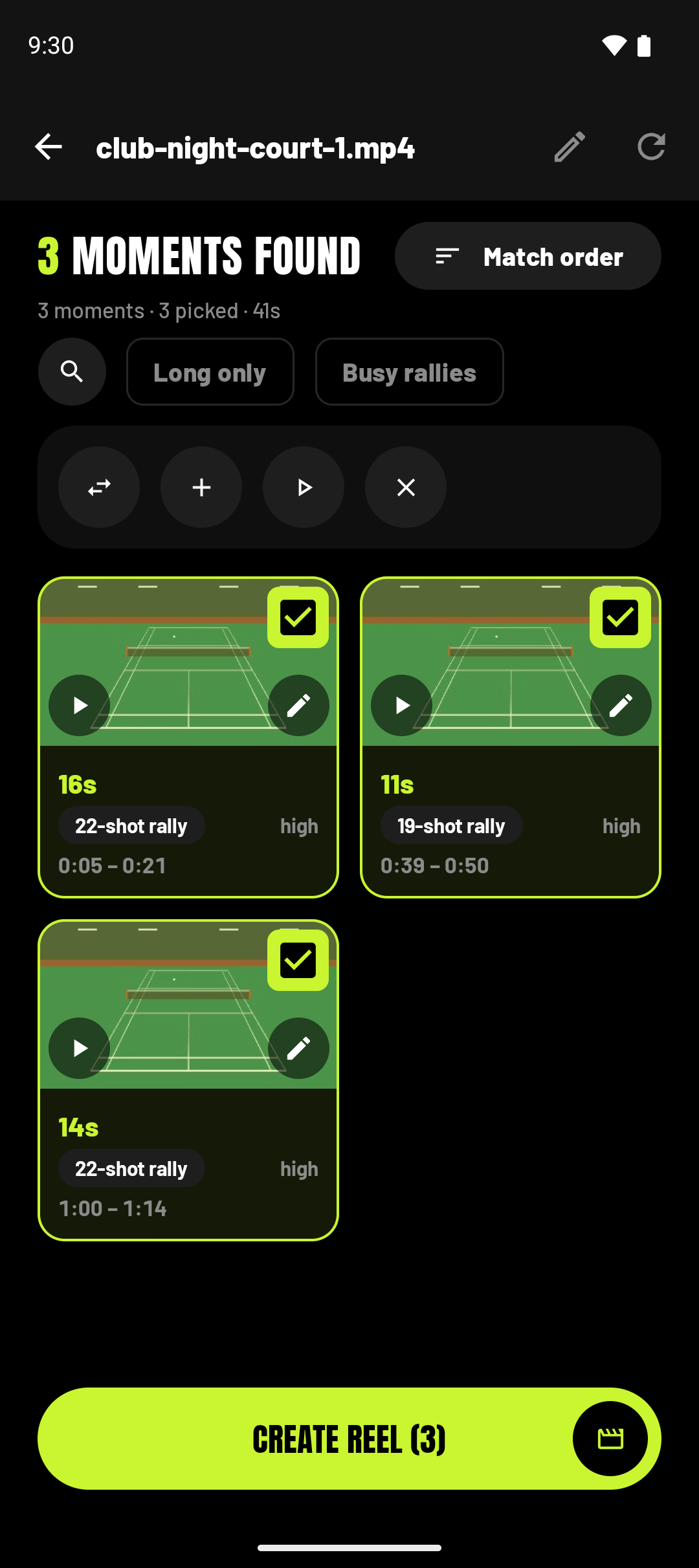
- When the moments are in, open the match. Long only shows rallies of 10 seconds or more, and, where shots were counted, Busy rallies shows those of 8 shots or more.
- Tap the rallies you want, then Create reel.
- In the reel builder, drag to reorder, trim any moment, give the reel a title, and choose Portrait for posting or Landscape for the frame as shot.
- The reel is made on your phone. Save puts it in Photos, under Movies › Khel Vision; Share reel sends it on. Both ask you to confirm that everyone in it is an adult who agreed to it being published.
When something goes wrong
- Note the code. A failure shows an error code starting
KV-, and a failed upload a reference you can copy. Either tells us where to look. - Send a report from the app: Settings › Diagnostics › Send a report to support. It carries no recordings, file names or account details.
- Or email us with a short template — what happened, what you were doing, and the code.
Your account on the phone
In Settings › Account:
- Sign out
- Your matches and reels stay on the phone, hidden until you sign back in. Several people can share a phone this way, each signing in to their own account.
- Remove from this phone
- Erases your account’s data in the app on this phone, including recordings kept only here, and signs you out. Other people’s accounts on the phone, and your account itself, stay.
- Delete account
- Deletes the account itself. How deletion works, including from Khel Vision Studio or by email.
Stuck on something this page does not cover?
Get in touch